
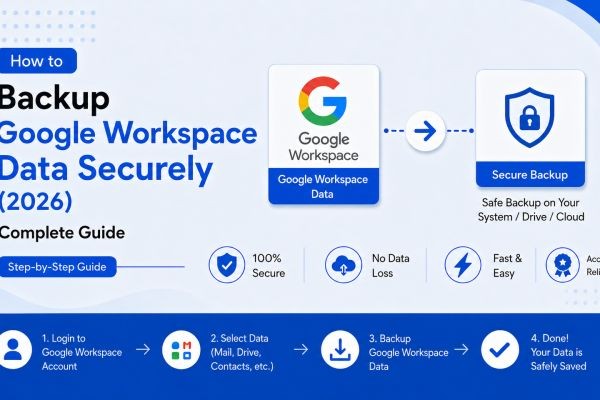
Introduction: Why Google Workspace Backup Is Non-Negotiable in 2026
Google Workspace, formerly G Suite, is an office productivity suite used by businesses worldwide to facilitate organization, collaboration, and storage of company information, offering impactful tools to help businesses unify workflows, improve communication, and increase productivity. However, relying solely on Google's infrastructure for your data protection is a serious mistake that many businesses make — often at a significant cost. Here's something that keeps IT admins up at night: Google Workspace doesn't automatically protect your business data the way you think it does. Under Google's shared responsibility model, Google keeps the service running, but protecting your data against deletion, ransomware, or a departing employee's purge is your job.
In 2026, having a robust Google Workspace Backup strategy is no longer optional — it's a foundational security requirement for any organization that values its data.
What Is Google Workspace Backup?
Google Workspace Backup means creating separate, recoverable copies of Gmail, Drive, Calendar, Contacts, and related data so your business can restore information after accidental deletion, ransomware, admin error, or account loss. A backup solution takes automated, point-in-time copies of your Workspace data and stores them independently, so you can restore a single email, a Drive file, or an entire user account long after Google's own retention has expired.
Why Do You Need Google Workspace Backup?
There are several critical reasons why businesses must invest in a dedicated Google Workspace Email Backup and overall data protection strategy:
- Google Doesn't Fully Cover Your Data: Google does not provide comprehensive backup of Workspace data; Gmail, Drive, Calendar, and Contacts are all subject to limited retention windows that do not protect against deliberate deletion or ransomware.
- Human Error Is Inevitable: When employees accidentally delete important content, departing team members remove shared files, or accounts become compromised, Google's native tools provide limited recovery options.
- Recovery Window Is Dangerously Short: Deleted items remain in trash for 30 days, after which administrators have an additional 25-day window to recover them — providing a maximum 55-day recovery period.
- Ransomware Is a Growing Threat: AI-driven phishing campaigns can bypass standard email filters, while API-based ransomware attacks increasingly target cloud data directly.
- Compliance Requirements: Industries requiring 6–7 year email retention need automated retention policies to manage administrative overhead efficiently.
- AI-Driven Threats Are Escalating: Backup platforms in 2026 increasingly incorporate AI capabilities to help administrators detect anomalies, prevent data risks, and accelerate recovery.
Two Key Methods for Google Workspace Backup
When it comes to protecting your organization's data, there are two primary approaches: Manual and Automatic. Let's explore both in detail.
Method 1: Manual Google Workspace Backup (Using Google Takeout)
The most accessible free method to Export Google Workspace Emails and data is through Google Takeout. If you are looking for Google Workspace backup free options, the main native choices are Google Takeout and Google Workspace Data Export, but both are limited for business recovery.
Step-by-Step Process:
- Go to the Google Takeout page and log in with your Google Workspace credentials.
- Click "Deselect all" to clear the list, then scroll down the service list to locate "Mail" and check its corresponding box; click the "All Mail data included" link to configure or customize backup settings.
- Set the delivery method — send the file to your mailbox or add it to Box, Dropbox, or OneDrive — then choose the backup file type and size, as larger backups may be divided into several parts.
- Click the button labeled "Link accounts and create export" to initiate the backup service. After that, you can track the backup status on the progress bar. Once done, save the backup to your preferred location on your computer, mobile device, or external storage media.
Limitations of the Manual Method:
While this free method allows you to Export Google Workspace Emails and data, it comes with significant drawbacks:
- Takeout has no restore function, exports are available at most every 30 days, and Data Export can take up to 9 days and also runs only once every 30 days.
- You can't download email attachments, and if you select the .zip file format, all your data will store in MBOX format, so you will need a third-party tool to open these files.
- You need to backup each mailbox one by one, making it very time-consuming, and if the process is interrupted for any reason, there is no way to resume it.
Method 2: Automatic Google Workspace Backup Using SysInfo Google Workspace Backup Tool
For businesses seeking a reliable, automated, and secure solution for Google Workspace Migration and backup, the SysInfo Google Workspace Backup Tool is a standout professional choice in 2026.
SysInfo Google Workspace Backup Tool is an advanced and comprehensive solution designed to help individuals, businesses, and IT administrators securely backup and migrate their entire Google Workspace data with ease. Whether you're switching to another platform, securing your cloud data offline, or managing multiple user accounts, this powerful tool simplifies every step of the process.
Key Features of SysInfo Google Workspace Backup Tool:
- Complete Workspace Coverage: The utility supports the backup of all major Google Workspace components, including Gmail emails, Google Drive files (Docs, Sheets, Slides, Forms, and Jamboard), Contacts, Calendars, and Google Keep notes.
- Multiple Export Formats: Users can download their data locally or to external drives in multiple formats such as PST, MBOX, EML, MSG, PDF, CSV, and more. This makes Google Workspace Email Backup highly flexible for any business environment.
- Seamless Google Workspace Migration: It also offers direct migration capabilities to other email clients and platforms like Office 365, Gmail, iCloud, IMAP, Yahoo Mail, and other G Suite accounts.
- Bulk Backup Support: One of its standout features is the ability to perform bulk user migration using a CSV file, which is especially beneficial for IT admins managing large organizations.
- Advanced Filtering & Customization: Advanced options like date range filters, duplicate email removal, folder exclusion, and PST file splitting make the backup process highly customizable and efficient. It also supports skipping already migrated data, which helps in incremental backups and avoids data redundancy.
- User-Friendly Interface: This G Suite Backup Tool is designed to easily backup or migrate Google Workspace data with a user-friendly interface, so users without technical expertise can use it to migrate data efficiently without any problems.
- Zero Data Loss: Users can back up their data from one or multiple G Suite accounts at once, with no data loss or corruption, and ensure a risk-free backup experience.
- Cross-Platform Compatibility: The tool is compatible with all the latest and prior versions of Windows OS and is a secure tool.
- Free Trial Available: A free demo version allows users to backup or migrate up to 50 emails per folder to explore its functionality and features.
How to Use SysInfo Google Workspace Backup Tool:
- Install and Launch — Start the SysInfo Google Workspace Migration Tool and tap the Continue tab to backup Google Workspace All Services or Backup Google Workspace Emails Only.
- Login and Authenticate — Provide your Google Workspace credentials and Service Account details to authorize the connection securely.
- Select Users and Services — Choose the specific user accounts and Google Workspace services (Gmail, Drive, Contacts, Calendar) you want to back up.
- Choose Output Format — With the SysInfo G Suite Backup Tool, users can backup their Google Workspace Services into multiple file formats, such as PST, MSG, MBOX, EML, EMLX, PDF, and CSV.
- Start Backup — The tool efficiently transfers all data in one go while maintaining the original folder hierarchy and metadata integrity.
Best Practices for Secure Google Workspace Backup in 2026
Regardless of the method you choose, follow these best practices:
- The best Google Workspace backup should include automated scheduling, Gmail and Drive coverage, Shared Drive protection, granular restore, retention controls, and dependable support.
- After the first backup, test recovery by restoring a file, email, folder, or account to the same user or another account, because good Google Workspace backup and recovery is only proven when restore works cleanly and quickly.
- Immutable backup protection is critical — backup copies cannot be altered or deleted, even by administrators — a critical defense against ransomware and insider threats targeting cloud data in 2026.
- Your backup solution should support configurable retention periods, audit logging, legal hold, and eDiscovery search capabilities.
Conclusion
With cyberthreats looming, backing up Google Workspace for Business has become increasingly important for gaining holistic control and visibility over your data and to protect your business from disaster.
In 2026, every organization using Google Workspace must have a clear and tested Google Workspace Backup plan in place. Whether you opt for the free manual route via Google Takeout or invest in an automated professional solution like the SysInfo Google Workspace Backup Tool for streamlined Google Workspace Migration, Google Workspace Email Backup, and the ability to Export Google Workspace Emails in multiple formats — the goal remains the same: never lose your critical business data.