
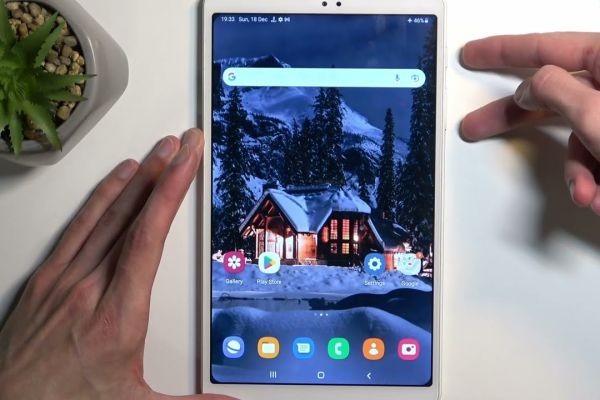
Taking screenshots is an essential feature for users who want to save information, share content, or document on-screen activity. If you own a Samsung tablet and are unsure about the available screenshot methods, this guide from Fiction Pad will walk you through everything you need to know. In this article, we’ll explain how to screenshot on Samsung tablet using different built-in techniques, along with tips to manage and edit your screenshots efficiently.
Why Screenshots Matter on Samsung Tablets
Samsung tablets are widely used for productivity, education, and entertainment. Whether you’re saving lecture notes, capturing app settings, or sharing a conversation, knowing multiple ways to take a screenshot on a Samsung Galaxy tablet can significantly improve your workflow. Samsung’s One UI offers flexible and reliable screenshot tools designed for both beginners and advanced users.
Method 1: Using Physical Buttons
The most common and universally supported method is the button combination approach.
Steps:
- Open the screen you want to capture.
- Press and hold the Power button and Volume Down button simultaneously.
- Release both buttons when the screen flashes.
The screenshot is instantly saved to the Gallery app. This method works on nearly all Samsung Galaxy Tab models and is ideal if you prefer tactile controls.
Method 2: Palm Swipe Gesture
Samsung also provides a gesture-based option, which many users find more intuitive.
How to enable and use:
- Go to Settings > Advanced Features > Motions and Gestures.
- Enable Palm swipe to capture.
- Swipe the edge of your hand across the screen from left to right (or vice versa).
Once enabled, this gesture allows you to capture screenshots quickly without pressing any buttons—useful during presentations or reading sessions.
Method 3: Using the S Pen (If Supported)
If your Samsung tablet supports the S Pen, you gain access to advanced screenshot tools.
Steps:
- Remove the S Pen to open Air Command.
- Tap Screen Write or Smart Select.
- Capture a full screen or select a specific area.
This method is particularly useful for professionals who need precise screen captures or want to annotate screenshots immediately.
Method 4: Scroll Capture for Long Pages
When capturing long webpages or documents, Samsung’s Scroll Capture feature is extremely helpful.
After taking a screenshot using any method:
- Tap Scroll Capture from the toolbar at the bottom.
- Continue tapping until the full page is captured.
This feature is ideal for tutorials, articles, or app interfaces that extend beyond one screen.
Where Screenshots Are Saved and How to Edit Them
All screenshots are stored in Gallery > Screenshots. Samsung tablets also offer built-in editing tools that allow you to crop, annotate, blur sensitive information, or share files instantly. These tools make it easier to manage visual content without needing third-party apps.
Final Thoughts from Fiction Pad
Understanding how to screenshot on Samsung tablet devices empowers users to work smarter and communicate more effectively. With multiple methods available—from hardware buttons to gestures and S Pen tools—Samsung ensures flexibility for every user type. At Fiction Pad, we believe mastering these small yet powerful features can significantly enhance your digital experience.